Mit WordPress auf der sicheren ???? Seite?
Sicher unterwegs im digitalen Leben


Den eigenen Computer sicher halten
Wo man als erstes starten sollte: Bei der Sicherheit am eigenen Computer. Während Keylogger alle Tastaturanschläge an Dritte übermitteln können, sind andere Trojaner und Malware ebenfalls sehr kritisch und können zu Virenbefall führen.
Wichtig ist deshalb, die regelmässigen Updates vom Betriebssystem vorzunehmen. Zudem folgende Tipps:
- Lernen Sie gefährliche Links zu erkennen (Tipps finden Sie z.B. auf swisscom.ch und heise.de)
- Setzen Sie Antiviren-Software ein
- Sichern Sie Ihren Benutzer mit einem Passwort ab
- Keine Passwörter im Browser speichern
- Nur über verschlüsseltes WLAN verbinden
- Als Internet Browser empfehlen wir Firefox oder Chrome.
Sicheres Hosting wählen
Der Hosting-Anbieter hat einen starken Einfluss auf die Sicherheit einer Website. Gemäss dieser Infografik sind 40% aller Angriffe auf Lücken vom Hosting zurückzuführen.
Gerne geben wir Ihnen eine Empfehlung ab, welche Hosting-Anbieter wir empfehlen und welche nicht.
Wichtig ist auch über das Server Control Panel auf optimale Einstellungen zu achten. Z.B. sollten Sie stets die vom Hosting-Anbieter empfohlene PHP Version installiert haben und darauf achten, dass Backups oder Daten mit kritischem Inhalt in keiner Weise öffentlich zugänglich sind.


Komplexe Passwörter
Benutzt man schwache Passwörter, macht man es Angreifern besonders leicht. So spielt die “Brute-Force-Methode” Millionen von Passwortkombinationen bei einem System durch, bis es irgendwann mal einen Treffer landet, oder blockiert wird.
In Bezug auf die Website gilt es folgende Zugangsdaten mit einem sicheren Passwort zu schützen:
- WordPress Administration. Der Benutzername sollte nicht “admin” sein.
- Zugangsdaten zum Webhosting
- FTP (zur Dateiübertragung direkt auf den Server)
- Datenbank (wird erstellt beim Aufsetzen von WordPress)
- E-Mail-Konten
Tipps zum Erstellen von sicheren Passwörtern
Berücksichtig man folgende 4 Regeln, ist man sicher unterwegs:
- Keine Begriffe, welche in einem Lexikon stehen. Auch dann nicht, wenn sie leicht abgeändert werden.
- Mindestens 12 Zeichen
- Gross- & Kleinbuchstaben, Zahlen und Sonderzeichen verwenden
- Das gleiche Passwort nicht an verschiedenen Stellen
Wir empfehlen das Benutzen eines Passwortmanagers, wie LastPass, 1Password, oder Dashlane. Dieser bietet auch die Option zum Generieren von Passwörtern. Wer ohne Passwortmanager arbeiten möchte, kann sich für Passwörter einen Satz ausdenken, das funktioniert so: Aus einem Satz wie “Heute erstellen wir ein sicheres Passwort für mich”, kann man die Anfangsbuchstaben nehmen HewesPfm und mit Sonderzeichen / Zahlen ergänzen. Das lässt sich einfacher merken und ist zugleich sicher.

Keine Passwörter per Mail
Wenn Sie ein Passwort per E-Mail versenden, dann bleibt dieses unter Umständen für Jahre in Ihrem Ordner “Gesendete Objekte” und evtl. auch beim Empfänger für längere Zeit gespeichert. Zudem kann es beim Übermitteln zu Datenklau kommen.
Müssen Sie ein Passwort jemanden übermitteln, dann schicken Sie das Passwort immer separat und nicht zusammen mit Login URL und Benutzername. Isoliert man das Passwort in einer sicheren Nachricht, kann ein ungewollter Empfänger damit nicht viel anfangen. Eine sichere Nachricht kann man z.B. über OneTimeSecret.com versenden. Dort fügt man sein Passwort in das Textfeld ein und bekommt anschliessend einen Link zum Versenden. Klickt der Empfänger auf diesen Link, wird die Nachricht angezeigt und anschliessend sofort gelöscht. Die Nachricht lässt sich somit nur 1x öffnen.
2-Stufen Authentifizierung
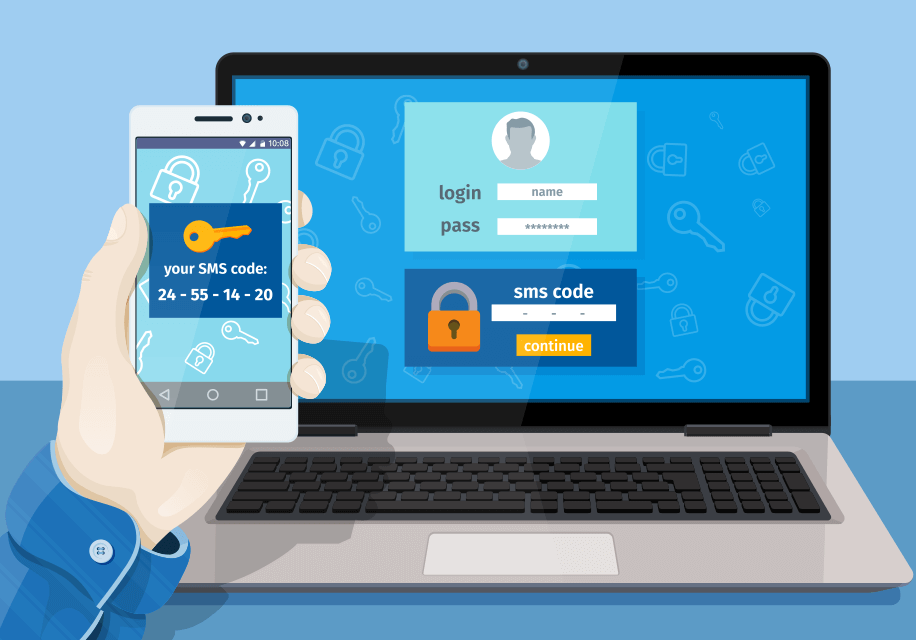
Die 2-Stufen Authentifizierung (im Englischen Two-factor authentication, wir nennen es deshalb kurz 2FA) kennen Sie vielleicht vom Login System Ihrer Bank. Neben dem Benutzernamen und Passwort wird hier noch ein Code als SMS oder an ein Gerät geschickt. Das schützt sogar dann, wenn Ihre Logindaten bekannt sind und ist somit äusserst effektiv.
Am einfachsten benutzt man eine App auf seinem Smartphone für die 2FA. Ich empfehle Google Authenticator oder Authy. Funktionsweise: Man loggt sich bei seinen Anbietern ein (z.B. Mailchimp) und aktiviert dort 2FA. Um die App mit dem Anbieter zu verbinden, scannt man über die Smartphone Kamera den QR-Code ein. Jeder weitere Login klappt dann nur noch mit zusätzlicher Eingabe vom ständig wechselnden 2FA Code auf der der App.
Bei jeder Einrichtung bekommt man die Möglichkeit, sich Backup Codes ausdrucken. Das ist wichtig für den Fall, wenn Sie einmal Ihr Smartphone verlieren.
Auch für WordPress Installationen gibt es die Möglichkeit, zusätzlich zu Benutzername und Passwort den Backend Bereich mit 2FA abzusichern. Wenn Sie das wünschen, geben Sie Bescheid. Das geht schnell und ist sicher. Gerne unterstützen wir Sie dabei.

WordPress Updates
Wichtige Sicherheitsupdates installiert WordPress automatisch, ohne dass man etwas machen muss. Alle paar Monate gibt es allerdings ein grosses WordPress Update. So gibt es z.B. seit diesem Jahr 2019 ausgereifte Versionen von WordPress 5. Beim Update von WordPress 4.9 auf WordPress 5 handelt es sich jedoch um das grösste Update seit vielen Jahren. Deshalb macht es hier Sinn, das Update zusammen mit einem Experten anzugehen. Alle anderen Updates kann man eigenständig vornehmen, unter Berücksichtigung des besprochenen Update Leitfadens.
Updates von Plug-Ins
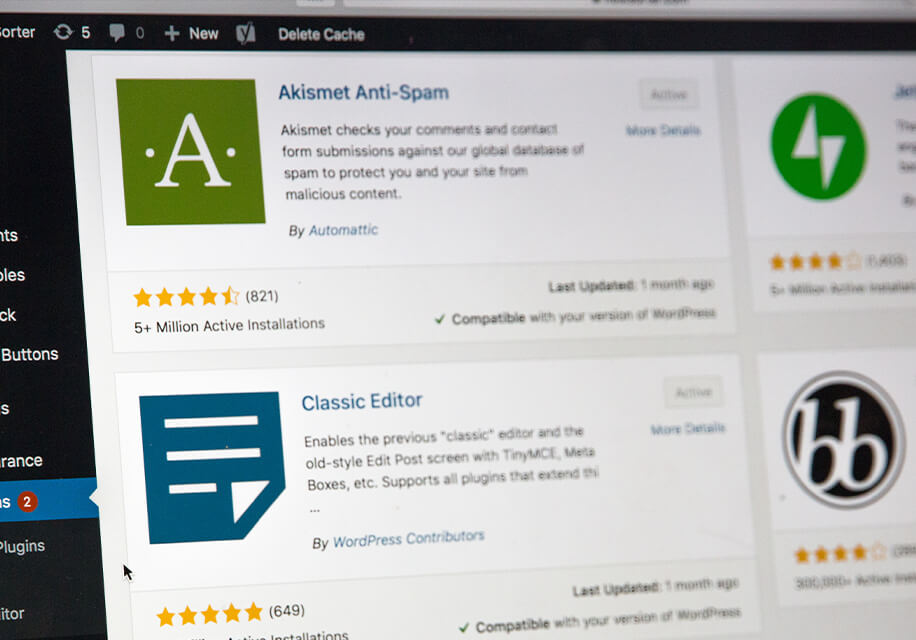
Plug-Ins erweitern den Funktionsumfang von WordPress und können ebenfalls eine Angriffsfläche bieten. Deshalb ist es wichtig, auch dort regelmässig Updates zu installieren.
Jede WordPress Installation ist diesbezüglich verschieden. Wenn Sie nicht sicher sind, ob Sie die Plug-Ins eigenständig updaten können, fragen Sie Ihren Webmaster. Wir stehen Ihnen gerne für Fragen zur Verfügung.

Weitere Tipps für Profis
In diesem Blogbeitrag finden Sie die wichtigsten Basics für Endkunden. Zusätzlich dazu kann man viele “Profi-Einstellungen” vornehmen, diese sollten Sie aber einem Experten überlassen. Es geht dann zum Beispiel um:
- Schutz dank der .htaccess Datei
- Sicherheitsmassnahmen in der wp-config.php Datei
- Durchsuchen von Verzeichnissen auf Server deaktivieren
- Pfad zur Login Seite ändern
- Backend Filemanager verbieten
- Versionsnummer von WordPress verstecken
- Unnötige Header-Einträge entfernen
- XML-RPC deaktivieren
Website mit Firewall versehen
Wir setzen in fast allen WordPress Installationen eine Firewall ein. Diese bieten einen starken zusätzlichen Schutz, sogar wenn man andere Sicherheitsmassnahmen vernachlässigt und z.B. nicht regelmässig Updates macht.
Die bekanntesten Plug-Ins für solche Zwecke sind WordFence und Sucuri. Diese schützen vor vielen unterschiedlichen Gefahren und verweisen auf Tipps, wie man mit der eigenen Website noch sicherer unterwegs sein kann.


Backups
Sicherungskopien zu erstellen hat nicht direkt mit der Sicherheit zu tun, von der wir hier sprechen. Aber ich möchte kurz darauf eingehen… Was Sie bei Ihrer Website stets eingerichtet haben sollten, sind regelmässige Sicherungen (Backups). Meistens bietet der Hosting Anbieter tägliche Backups an. Das passiert im Hintergrund und man kann 2 bis 4 Wochen darauf zugreifen. Zusätzlich kann man über die WordPress Administration separat noch Backups machen, welche auch länger aufbewahrt werden können. Und schliesslich ist es wichtig, dass man 1-2x Jahr auch Backups an einem separaten Ort speichert. Z.B. in dem Sie ein Backup der Website auf einen sicheren Computer herunterladen.
Wir hoffen diese Tipps helfen, Ihre Website und Ihr digitales Leben etwas sicherer zu machen. Das Thema Sicherheit ist jedoch sehr komplex und wird hier nur oberflächlich angeschnitten.
Wenn Sie in die IT-Sicherheit Ihres Unternehmen als Gesamtes investieren möchten (inkl. allen Geräten und eigenen Server), dann empfehlen wir die Zusammenarbeit mit einem Experten im Bereich IT-Security, wie z.B. Infoguard aus dem Kanton Zug. Geht es Ihnen lediglich um die Sicherheit Ihrer Website, dann sind auch wir die richtigen Ansprechpartner und stehen gerne zur Verfügung.
Weitere Blogbeiträge
Meet our CTO: A Technology and AI Expert with Vision

Die Vorteile eines WordPress Wartungspaket
“Above the Fold” – Websites richtig aufbauen